Guides
How to use PhotoCraft online: your first edit
Open an image or PSD, change a layer, undo a mistake and download a PNG. Follow this PhotoCraft tutorial with a free three-layer practice file.
Open editorMenu paths use the editor’s English labels. The website language and the editor language are separate settings.
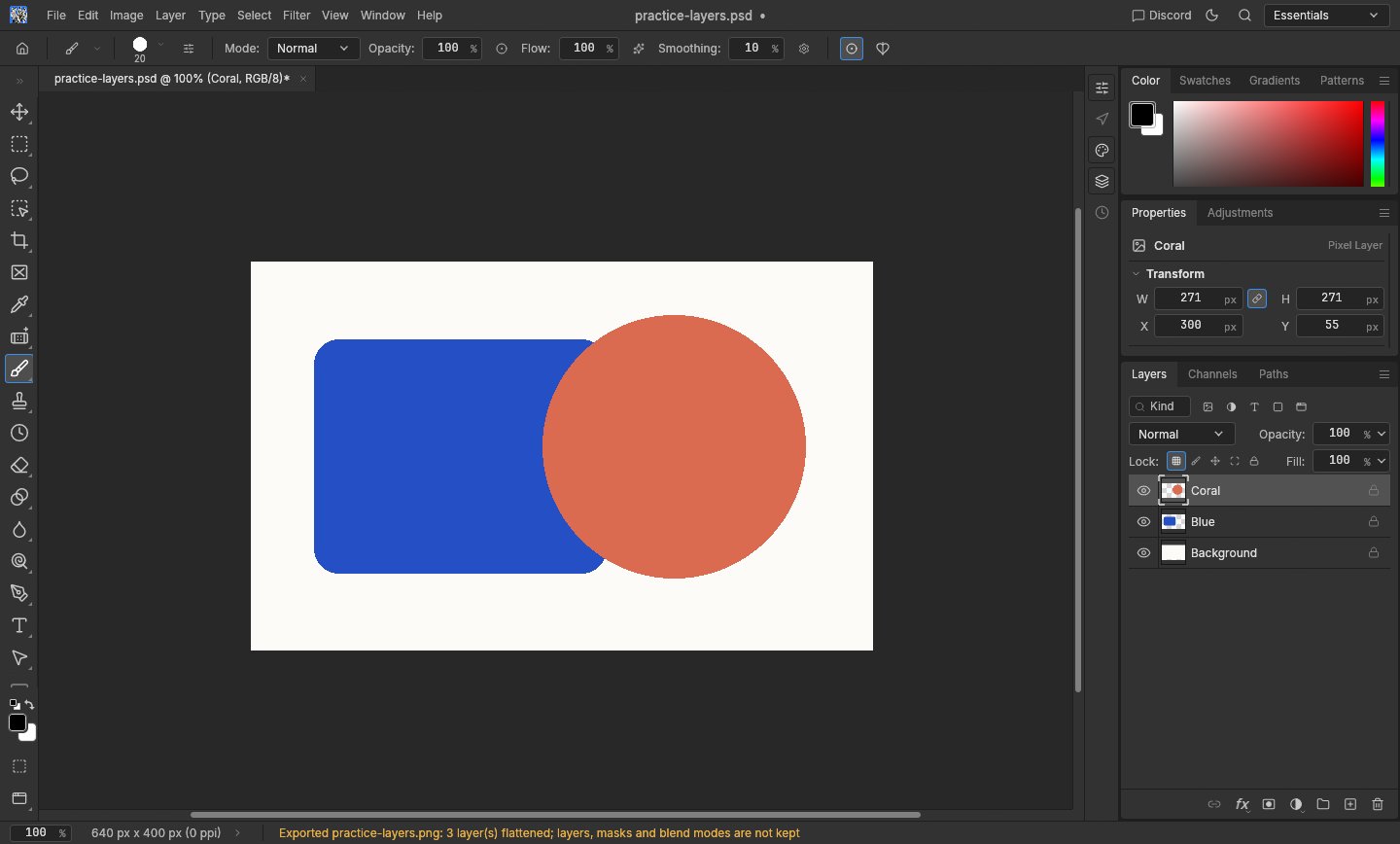
1. Open an image in the browser editor
Launch the editor and wait for its canvas to appear. Choose Open… on the welcome screen, or File → Open, then select an image from your device. Use the practice PSD on this page if you want to follow the layer exercise exactly.
A PNG or JPEG usually opens as a single image layer; the practice PSD has three. Opening a file does not replace the original on your device. A desktop or laptop gives you more room for the editor’s panels.
2. Make one change, then undo it
In the Layers panel on the right, find Coral and click the eye beside it. The coral circle disappears, revealing the blue shape underneath. Click the eye again to show it. This changes layer visibility without erasing pixels.
To reverse the last change, use Edit → Undo. Shortcuts are convenient once the canvas has focus, but the menu avoids conflicts with browser shortcuts. Before painting or adjusting color, select the intended layer in the Layers panel.
3. Export a PNG and keep an editable copy
Choose File → Export → Quick Export as PNG with the default export preferences. Your browser downloads an image of the visible result. Open that download to check its dimensions and appearance before sharing it.
A PNG does not retain editable layers. If you need to continue later, use File → Save As to download a layered project copy too, then reopen it to check it. Keep the original PSD separately; browser downloads do not silently update it.
4. Save before leaving; recover from loading issues
The web build does not provide document autosave or crash recovery. Download your work before refreshing, changing editor language pages or closing the tab. Local preference storage is not a backup of the open image.
If the editor cannot start, try the compatibility mode offered in Help or on the loading screen. It reloads the editor using WebGL. If a large file fails, try a smaller copy; the official desktop releases are another option.