Guides
Open a PSD online and export it as PNG with PhotoCraft
View and edit PSD layers in your browser, then download a PNG. Learn what flattening means and what to check before relying on PSD compatibility.
Open editorMenu paths use the editor’s English labels. The website language and the editor language are separate settings.
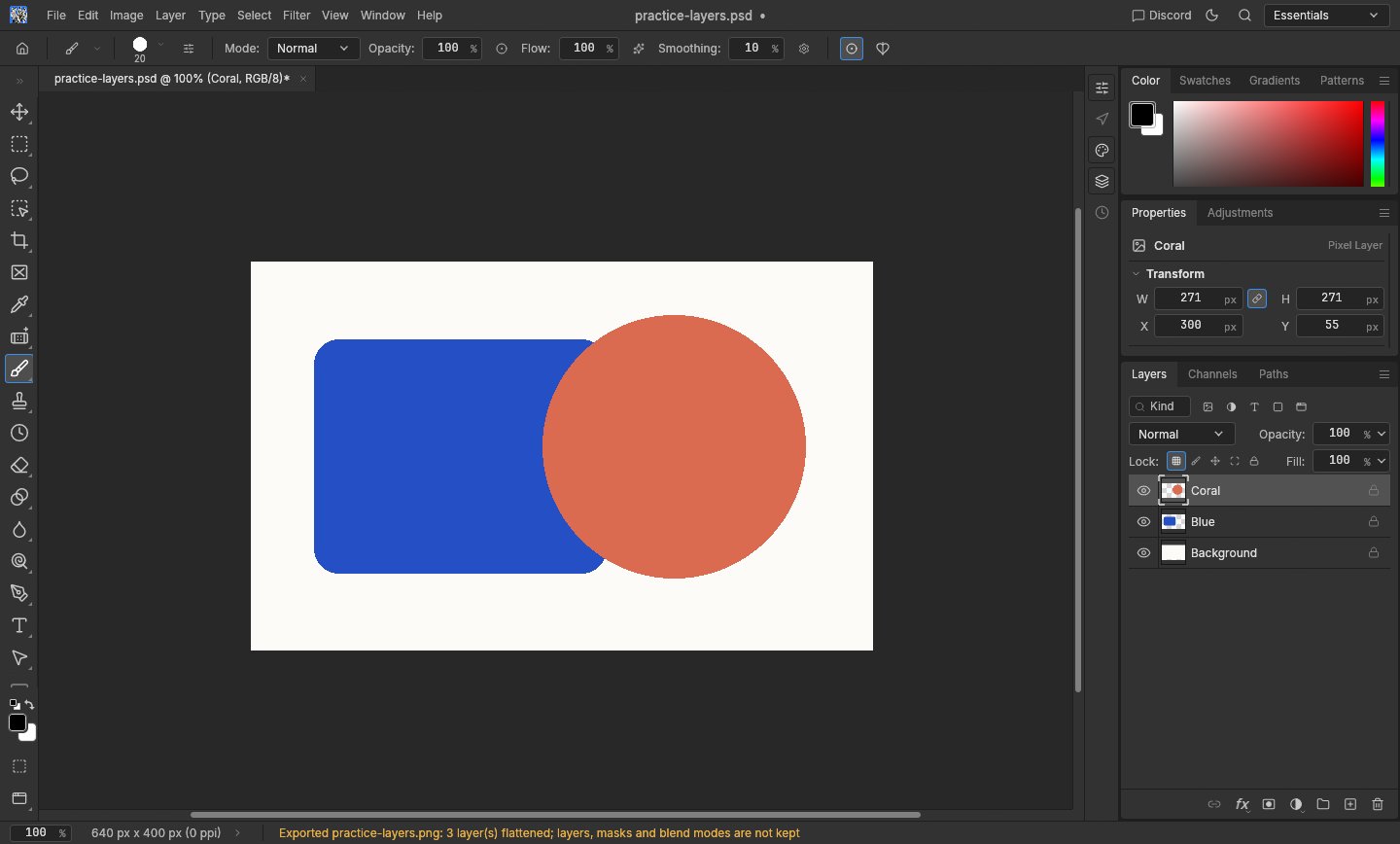
Open a copy of the PSD
Keep the original file, then open PhotoCraft and choose File → Open. Select the PSD from your device and wait for the document and Layers panel to appear. The file is processed in your browser; this website does not offer an image upload service.
A large PSD can need substantially more memory than its file size suggests. If it fails to open, first check the small practice file on this page. That separates a basic loading problem from an issue specific to your document.
Check layers and appearance before editing
Compare the canvas with a trusted preview of the original. Inspect text, masks, transparency, blend modes and layer effects wherever your document uses them. A PSD opening successfully does not prove that every Photoshop feature remains editable or looks identical.
For the practice file, look for Coral, Blue and Background. Hide Coral with its eye icon: the blue shape should become fully visible. Undo the change to restore the circle. This checks simple raster layers only, not smart objects or text compatibility.
Export the visible result as PNG
Use File → Export → Quick Export as PNG with the default preferences, then check the browser download. PhotoCraft may warn that layers are flattened. That is expected: a PNG combines the visible result into one image and cannot preserve separate editable PSD layers.
If you previously changed quick-export preferences, its menu label may name another format. Use File → Export → Export As and select PNG instead. For future editing, download a separate layered copy with Save As and reopen that copy before trusting it as your working file.
Know what this workflow does not guarantee
Our small PSD test covers three raster layers, visibility changes and PNG export. It does not cover every blend mode, smart object, adjustment, font, color profile or PSB size. For production work, compare a representative file in the application that created it before committing to a new workflow.
If exact fidelity matters, keep the original application available. A flattened reference can help you check the visible result, but cannot restore editable features lost during conversion. Always preserve the untouched source file.